This article applies to RecoveryConnect company usersTraining Objectives
By the end of this training, a Spottee user will be able to:
Log in to the Spottee portal
Navigate the Map View
Filter assignments and cases
View completed assignment details
Import and export addresses
Understand address statuses
Edit eligible addresses
Process VIN status changes
Configure email notifications
1️⃣Getting Started – Logging In
Step 1: Access the Spottee Portal
Navigate to:
https://gospotter.io/spottee
Step 2: Enter Credentials
Enter your Username
Enter your Password
2️⃣ Map View Overview
The Map View provides a visual representation of all address assignments.
Step 1:
Click Map View to display address pins for the spot.
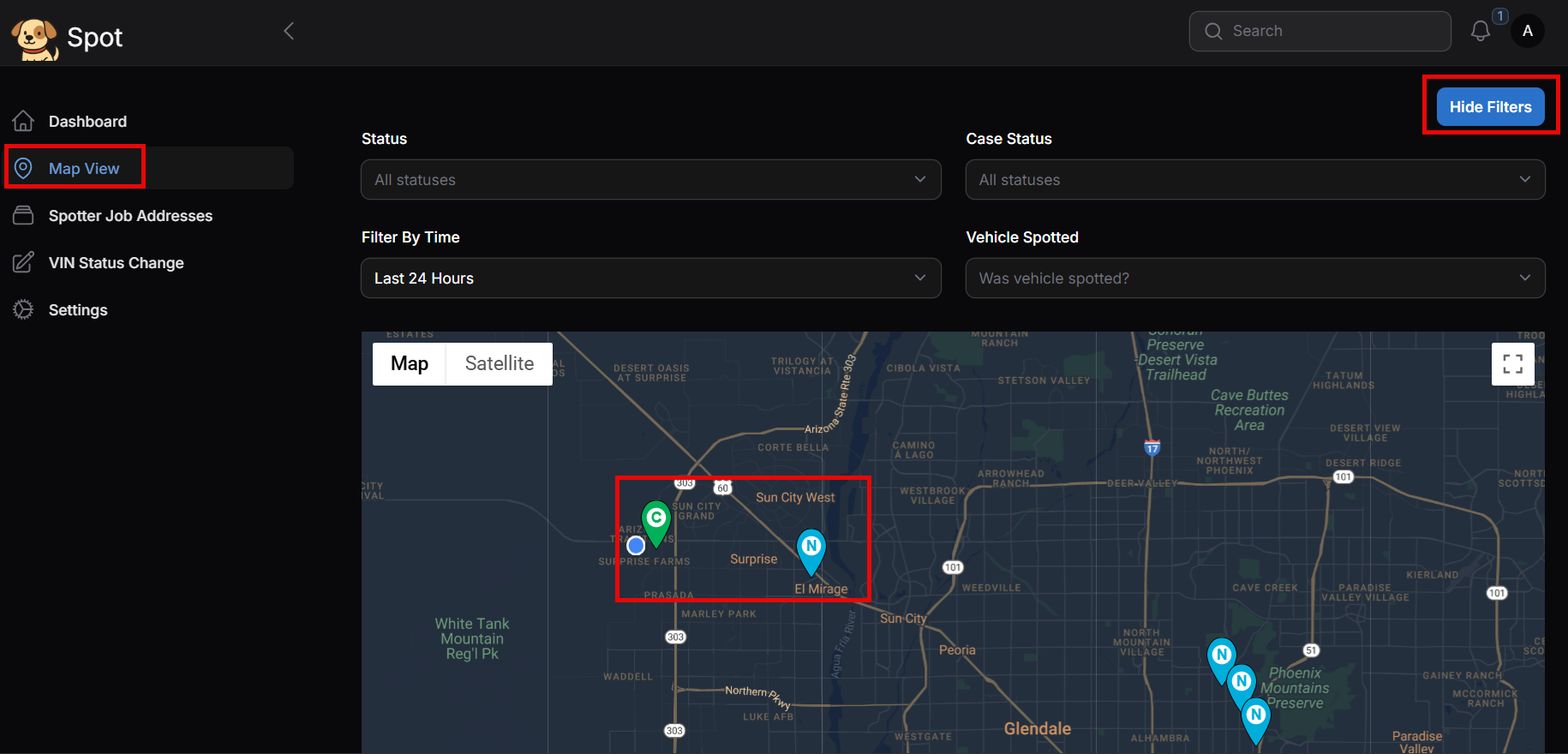
Map Filters
You can refine what you see using filters.
Show / Hide Filters
Allows you to control which pins are displayed.
Address Assignment Status (Assignment Level)
Status | Meaning |
|---|---|
New | Assignment has not been accepted yet |
Open | Assignment has been accepted and is being worked on |
Completed | Assignment has been finished |
Cancelled | Assignment has been cancelled |
Case Status (Case Level)
Status | Meaning |
|---|---|
Open | The case is currently active |
Closed | The case is no longer available |
Repossessed | The case has been completed |
Filter by Time
You may filter activity by timeframe:
Last 24 Hours
Last 7 Days
Last 30 Days
Custom Range
Vehicle Spotted Filter
Options include:
Both
Yes
No
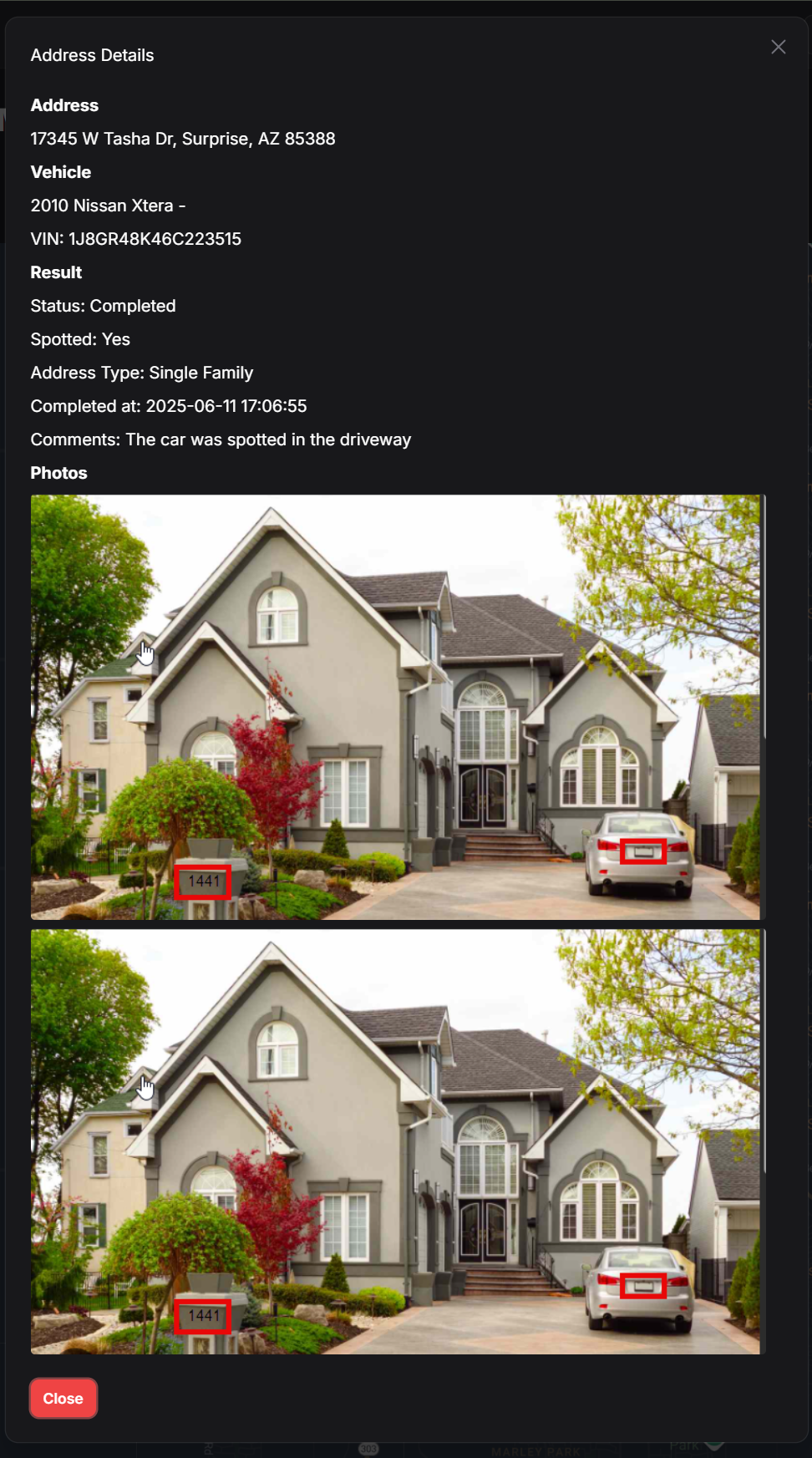
Viewing Assignment Details
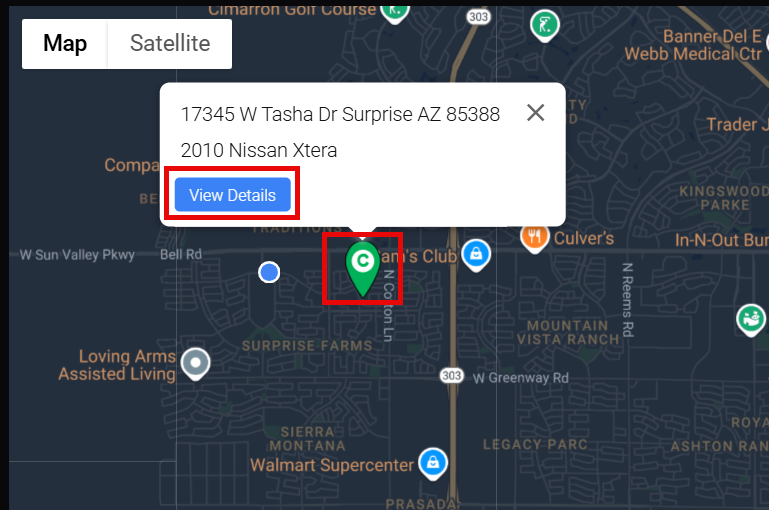
Click on a map pin
Click View Details
Review completed assignment information
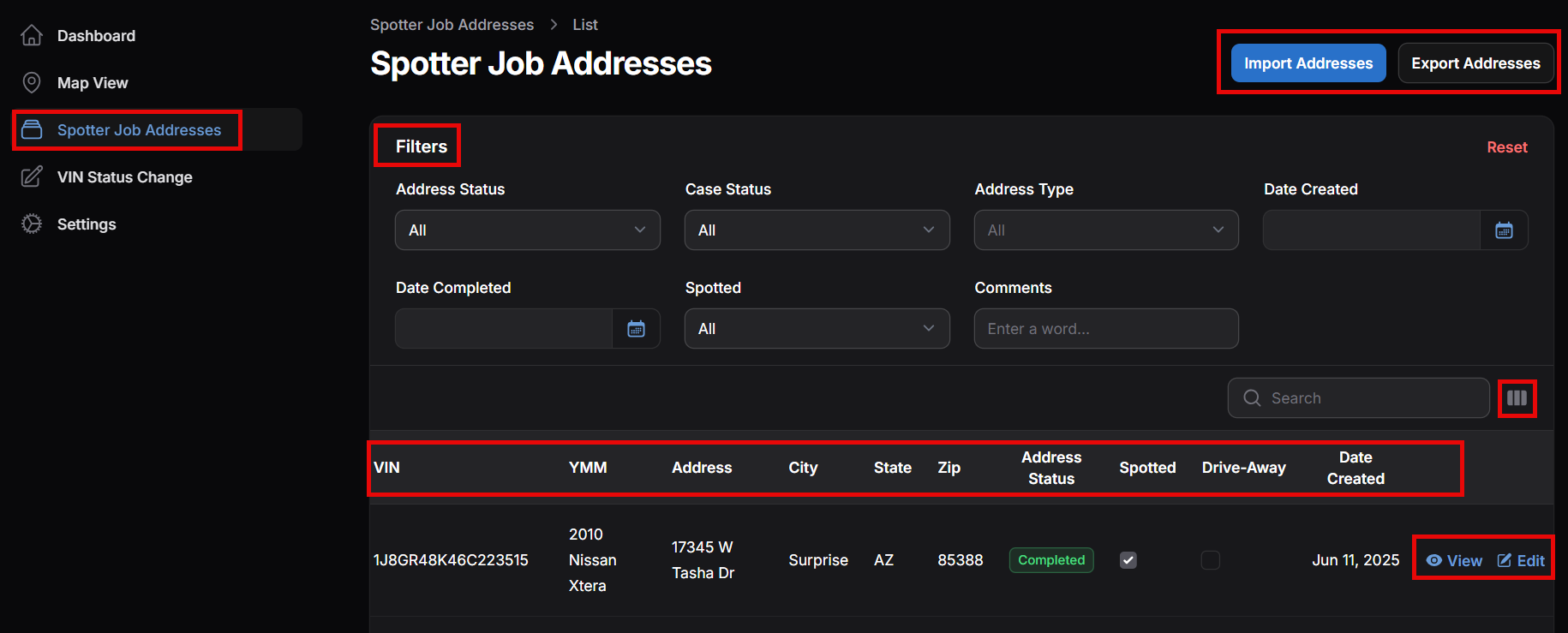
3️⃣ Spotter Job Addresses
Step 1:
Click Spotter Job Addresses
This section allows you to:
View all assignments in list format
Import addresses
Export address data
Edit eligible records
View job specifics
4️⃣ Importing Addresses
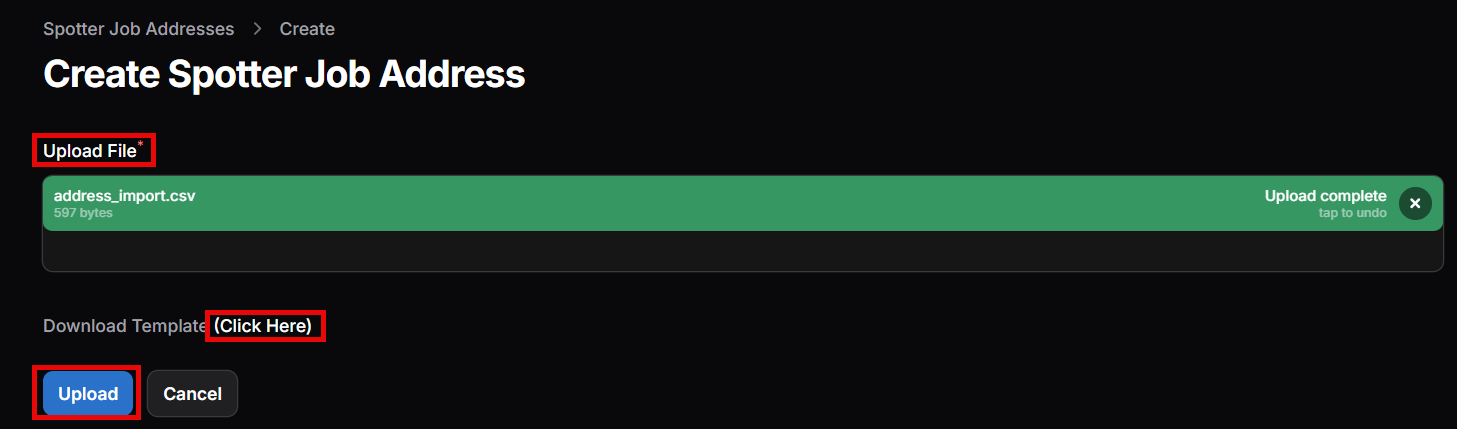
To upload addresses in bulk:
Click Import Addresses
Click “Click Here” to download the template
Upload completed file
When the file turns green, click Upload
5️⃣ Exporting Addresses
To export data:
Click Export Addresses
Select desired columns
Click Export
6️⃣ Address Header Definitions
Click the three lines next to Search to customize which columns are visible.
Column Breakdown
Column | Definition |
|---|---|
ID | RecoveryConnect-specific case number |
VIN | Vehicle Identification Number |
YMM | Year, Make, Model |
Address | Location to search for the vehicle |
City / State / Zip | Address details |
Status | Address assignment status |
Address Type | Type of address |
Spotted | Vehicle located |
Drive Away | Spotter unable to access vehicle |
Plate Process Results | License plate number |
Comments | Notes related to the address |
Date Created | Date entered into Spotter |
Date Completed | Completion date |
View | View job specifics |
Address Status Definitions
Status | Meaning |
|---|---|
New | Spotter has not accepted the address |
Accepted | Spotter has accepted the address |
Completed | Address processed |
Cancelled | Address cancelled |
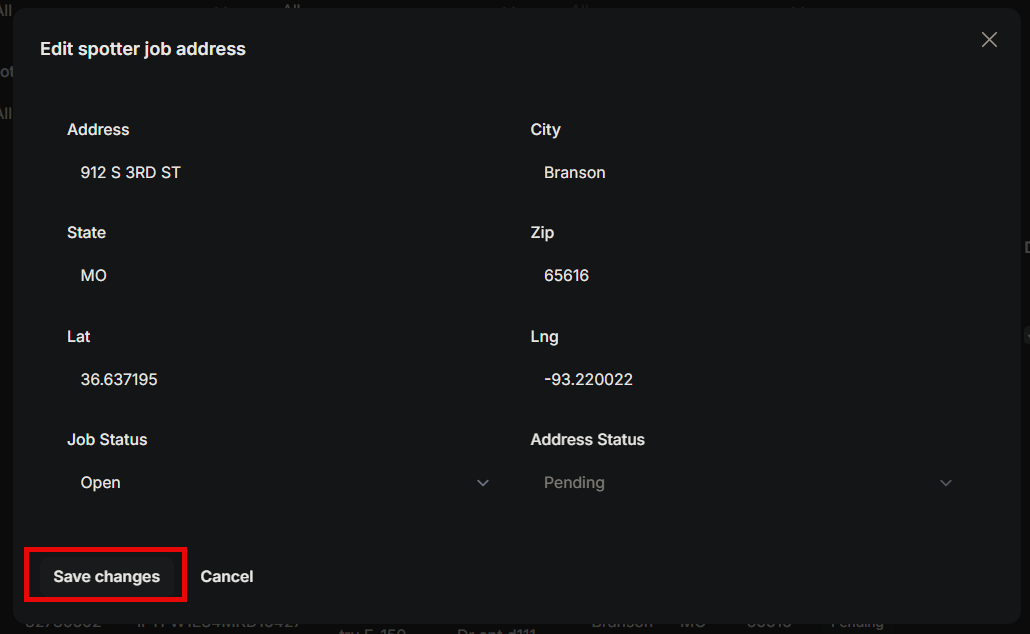
Editing an Address
You may edit an address only while it is in “New” status
Click Edit
Make necessary changes
Click Save Changes
7️⃣ VIN Status Change
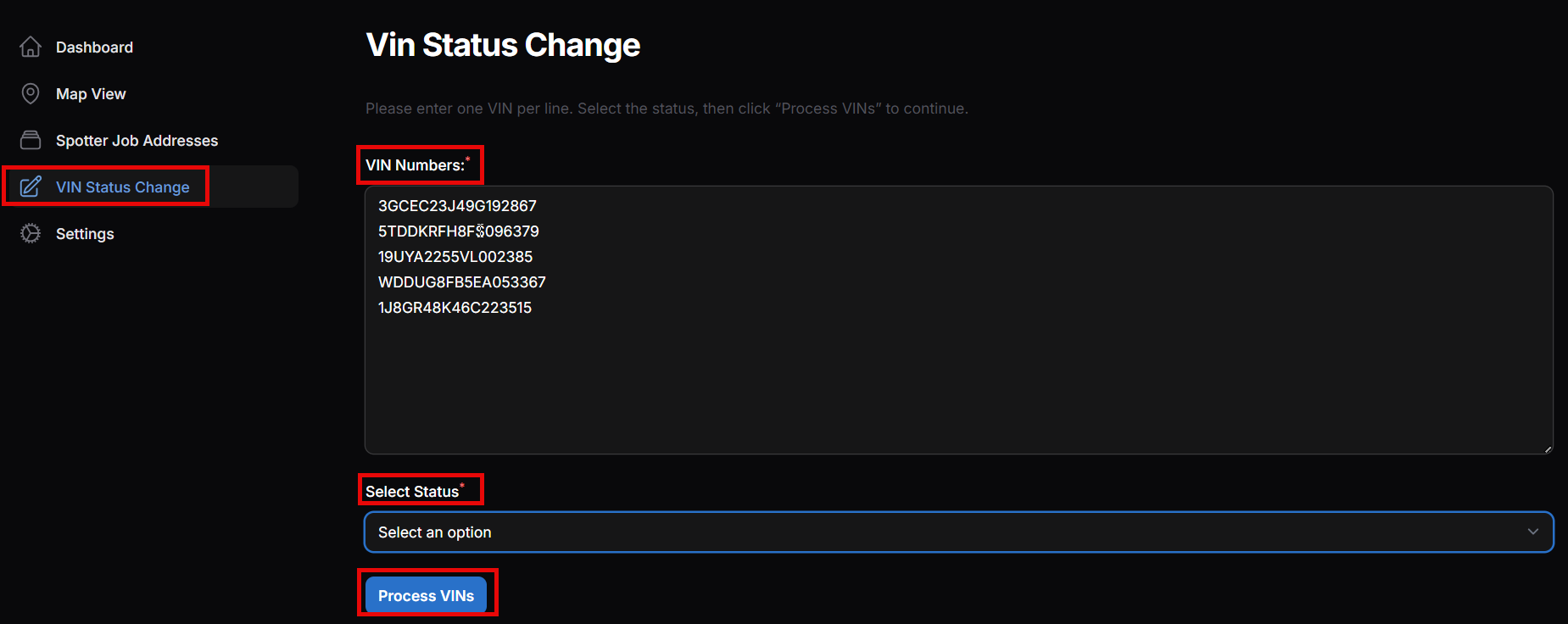
You may update the case status to match RecoveryConnect.
Steps:
Click VIN Status Change
Enter VIN(s) to update
Select new status:
Closed
Repossessed
Click Process VINs
8️⃣ Settings & Email Notifications
Configure email alerts for system activity.
Steps:
Click Settings
Enter your email address
Select notification options:
Address Run
Vehicle Spotted
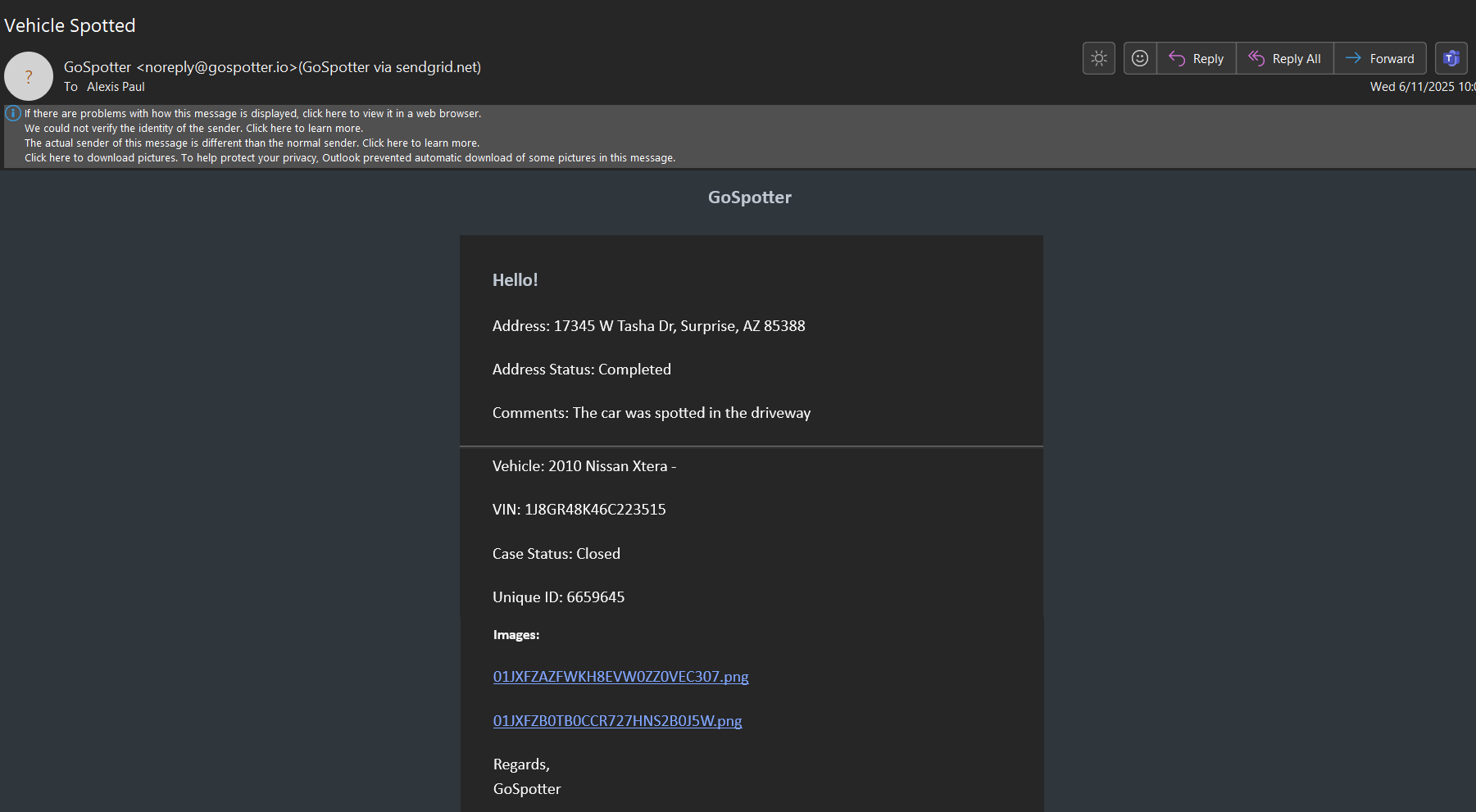
Click Save
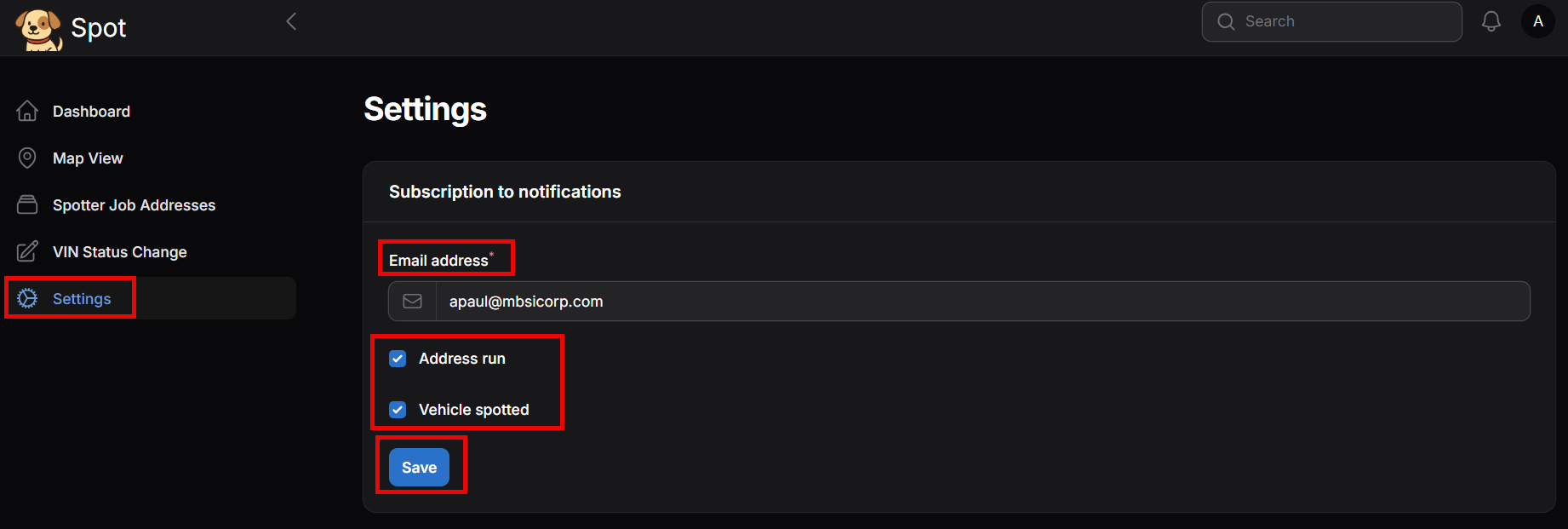
You will receive email notifications based on your selections.