
This article applies to spotters Training Objectives
After completing this training, a Spotter Driver will be able to:
Log in to the Spotter portal
Navigate the Addresses Map
Accept an assignment
Complete the address form correctly
Upload compliant photos with GPS metadata
Understand acceptable vs. non-acceptable photos
Use the Addresses List view
Filter and manage assignments
1️⃣ Logging Into the Spotter Portal
Step 1: Go to the Portal
Navigate to:
https://gospotter.io/
Step 2: Enter Credentials
Username
Password
2️⃣ Open the Addresses Map
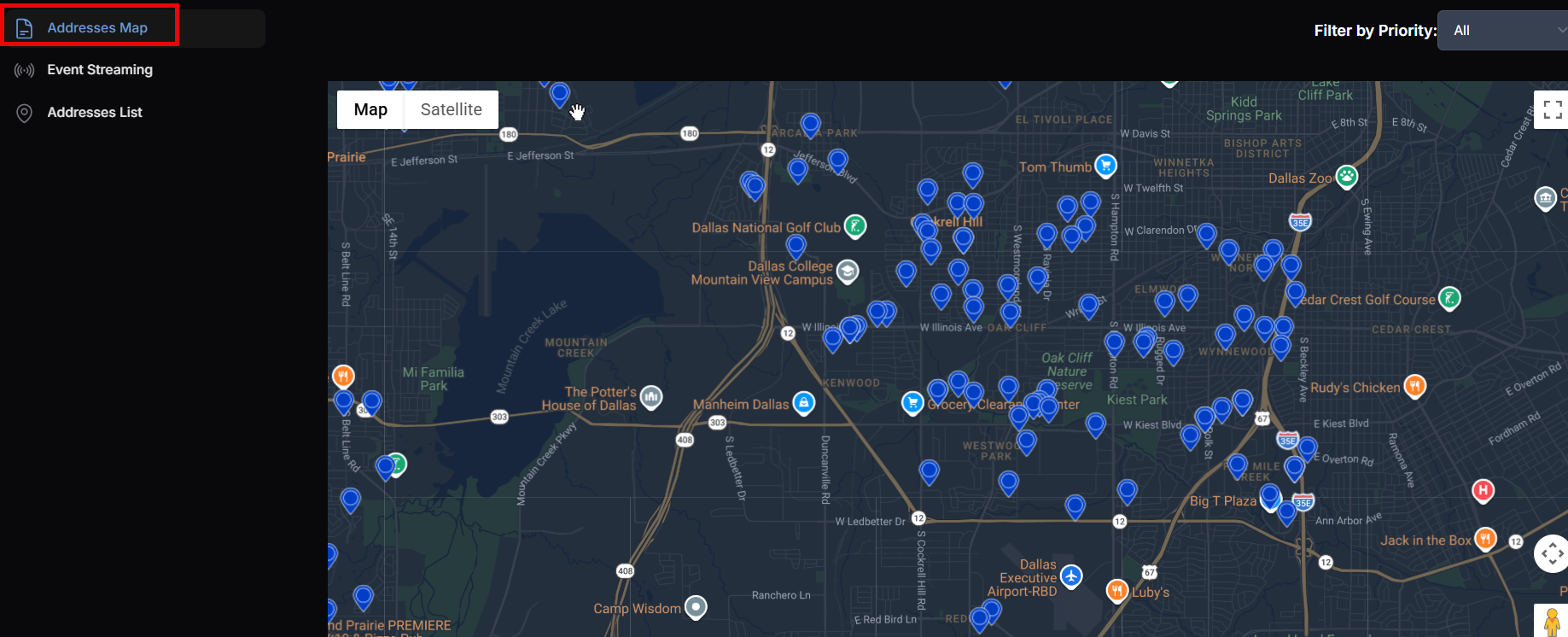
Step 1:
Click the Addresses Map to view assignment pins.
Each pin represents an available assignment in your area.
3️⃣ Accepting an Address
Step 1:
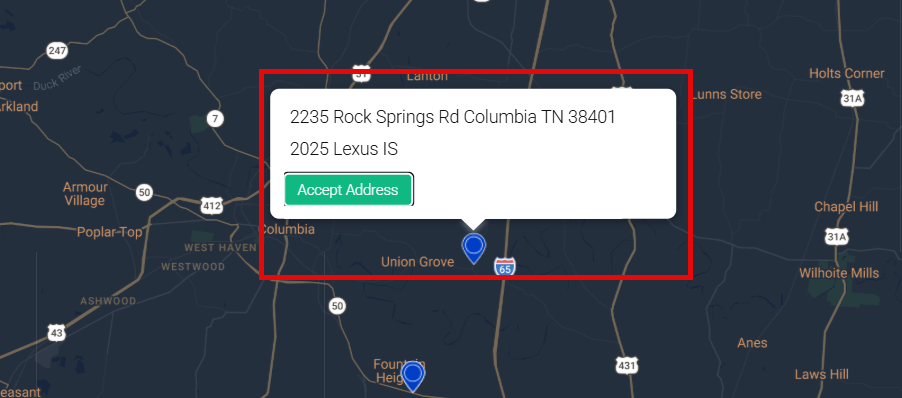
Click a map pin to open assignment details.
Step 2:
Click Accept Address.
Once accepted, the case is assigned to you.
4️⃣ Completing the Address Form
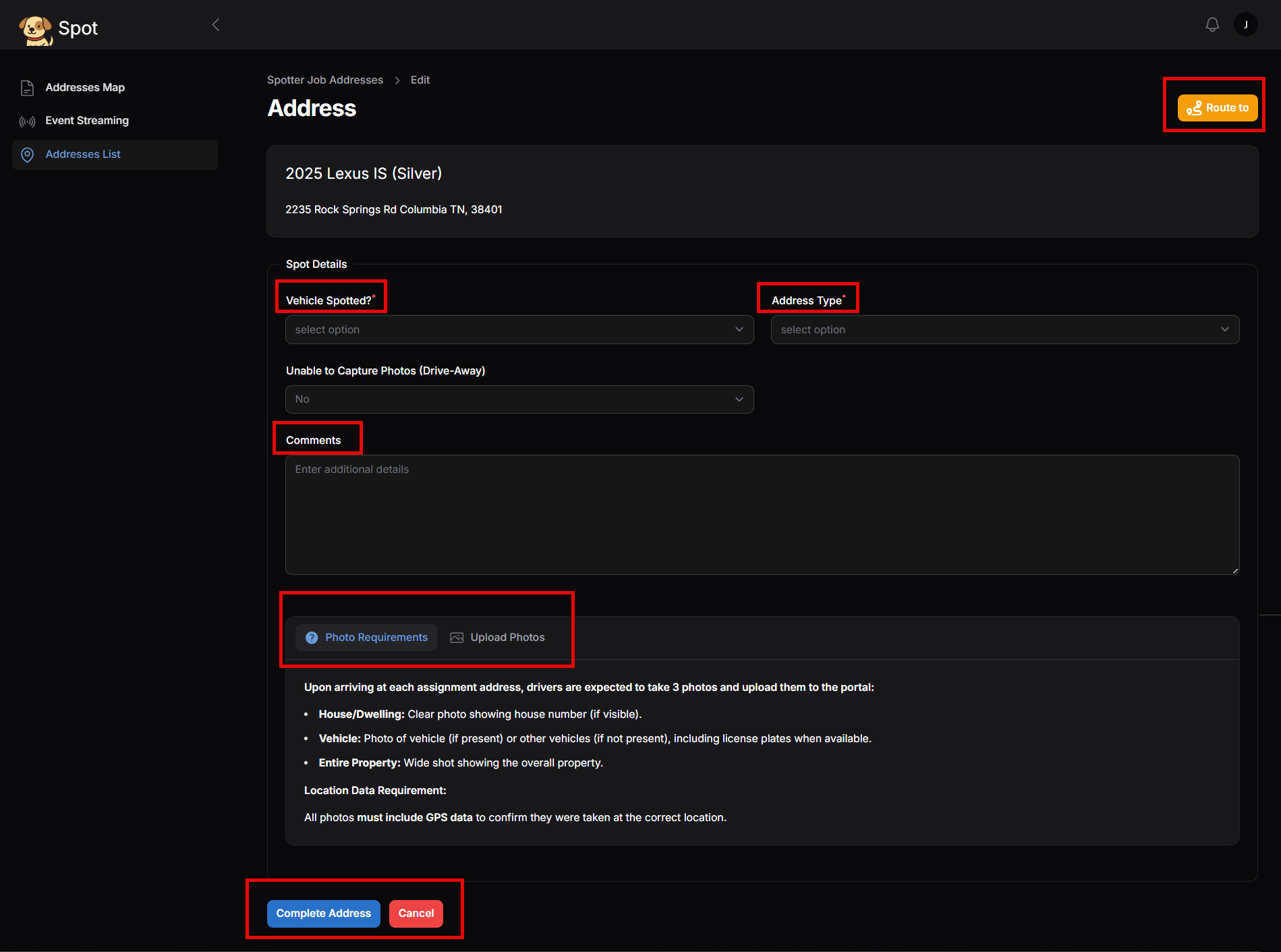
After accepting the address, complete all required fields.
Required Fields:
Route To (opens Google Maps)
Vehicle Spotted (Y/N)
Address Type
Comments
Upload Photos
Driveaway
Select Yes if you could not safely stop to capture all required photos.
In these cases, we only need one photo of the vehicle’s interior with GPS on to prove the driver was on-scene. These pay a flat $3.00.
Select No if photos were taken
5️⃣ Photo Requirements (Critical Section)
To complete an address, you must upload 2–3 on-site photos.
Required Photos:
Mandatory Photo Uploads: We now require at least 3 photos (previously 2). Required shots include:
One full view of the property/dwelling.
One close-up of the address.
One of the vehicle in question (and its license plate, if applicable).
Note: If the vehicle is not present, please provide photos of any/all surrounding vehicles.
Location Data Requirement (Mandatory)
All photos must include GPS coordinates
Photos without location metadata will not be approved
Failure to include GPS data may result in rejection.
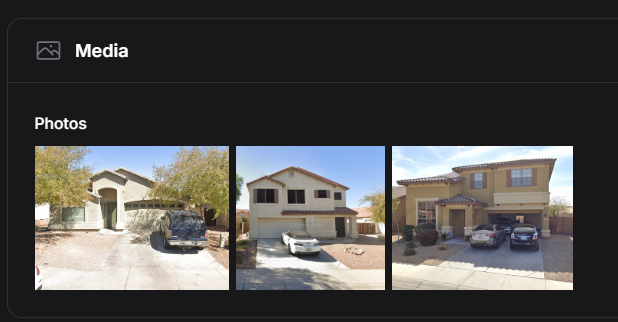
Acceptable vs. Not Acceptable Photos
Acceptable Photos
- Clear images.
- Entire property visible
- Clear view of the structure and driveway
- No obstructions
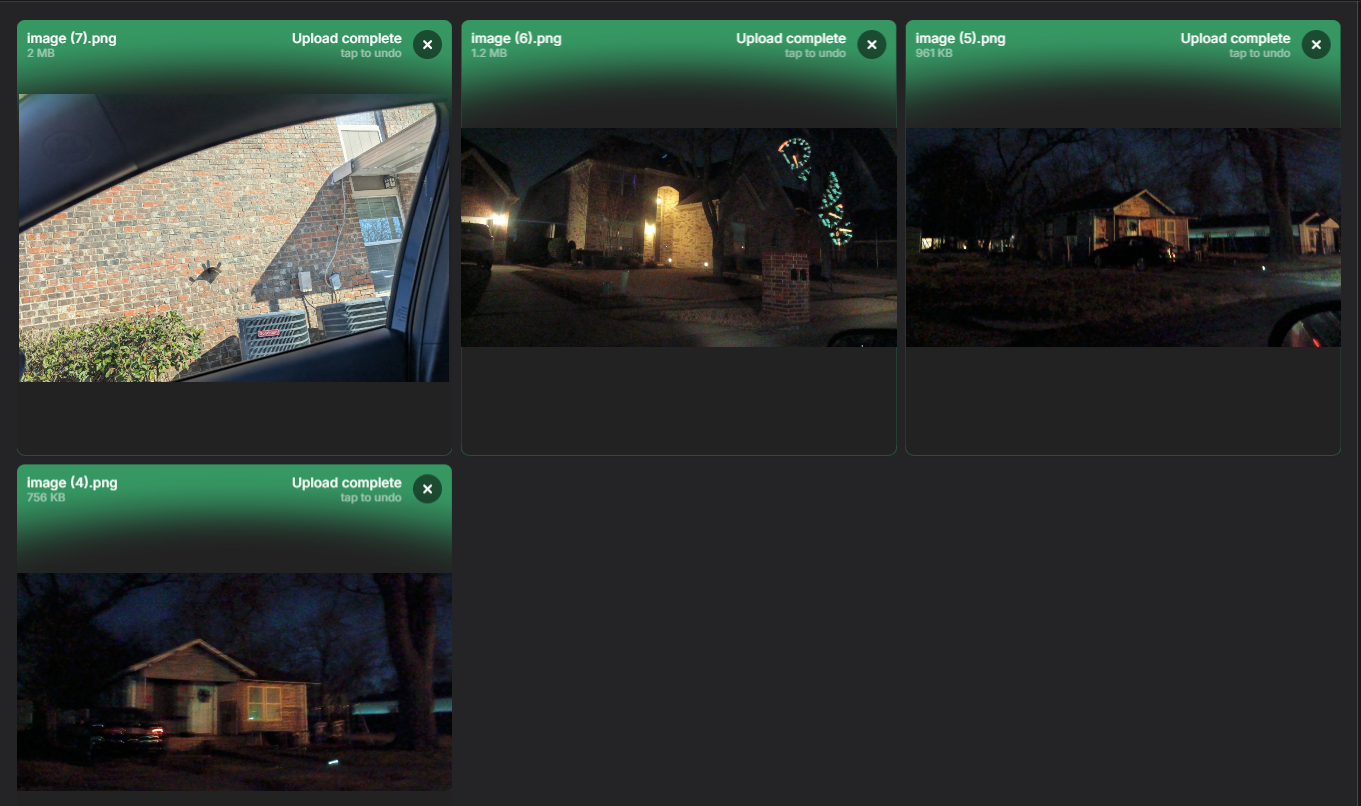
Not Acceptable Photos
Taken from inside the vehicle
Too dark - When taking photos at night, ensure photo clarity before uploading.
Blurry or obstructed images
Poor angle or incomplete property view
6️⃣ Addresses List Overview
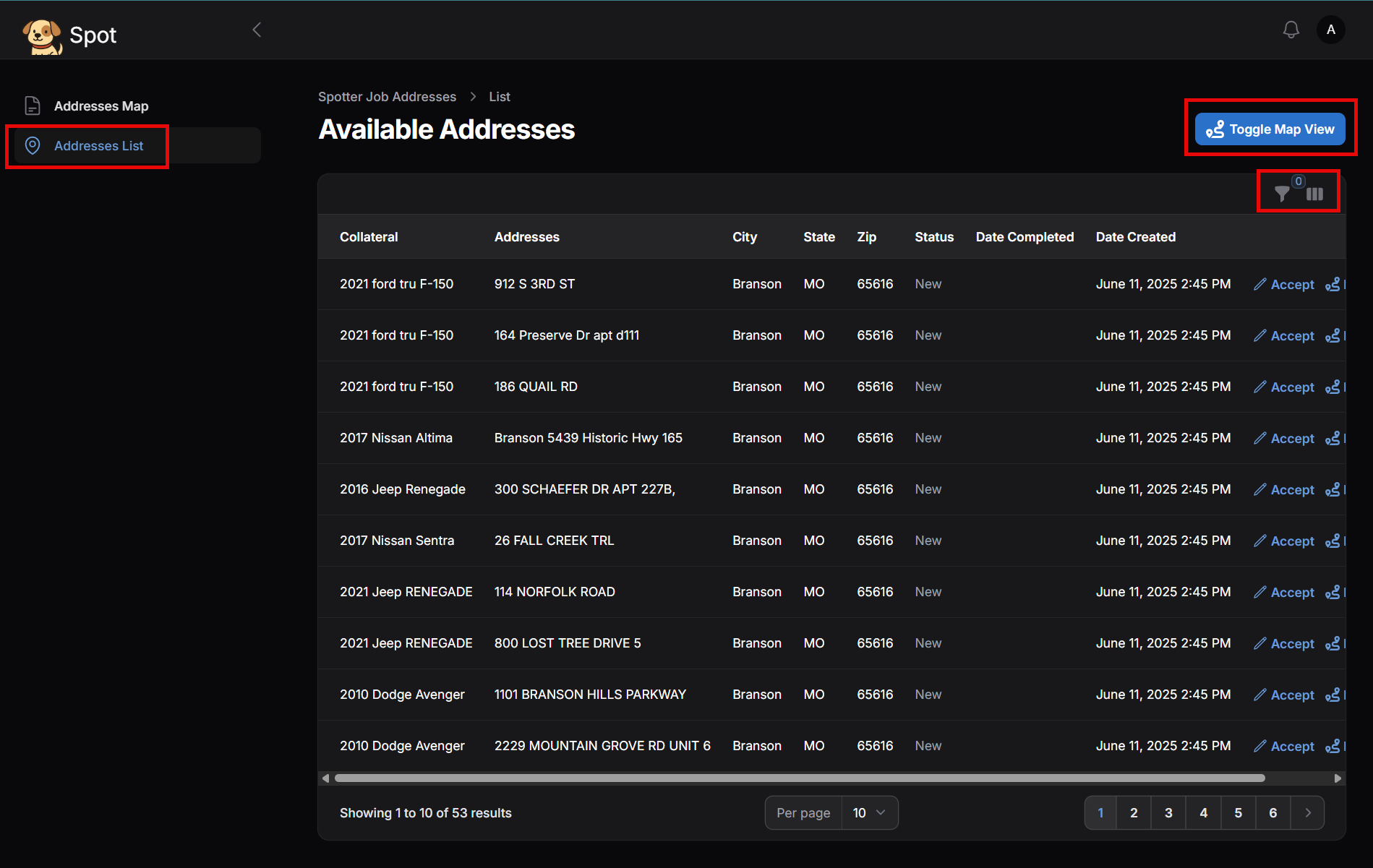
Click the Addresses List to view all assignments in table format.
Available Tools
Toggle Map View
Centers the map on your current location.
Funnel Icon
Filter assignments by status.
7️⃣ Customizing Columns
Click the three lines icon to select which columns appear in your list view.
Column Definitions
Column | Definition |
|---|---|
ID | Spotter ID |
Vehicle Information | Vehicle being searched for |
Address / City / State / Zip | Assignment location |
Status | New, Accepted, Completed |
Accept | Click to accept the assignment |
Route To | Opens Google Maps |
Assignment Status Definitions
Status | Meaning |
|---|---|
New | Available for acceptance |
Accepted | Assigned to you |
Completed | Submitted and processed |