
This article applies to spotter admins Training Objective
By the end of this training, a Spotter Admin will be able to:
Log in to the Spotter portal
Navigate the Driver Dashboard
Manage system users
Review and filter Spotter Job Addresses
Understand job statuses and column definitions
Edit user and job information
1️⃣ Logging Into the Spotter Portal
Step 1: Access the Portal
Navigate to:
https://gospotter.io/
Step 2: Enter Credentials
Enter your Username
Enter your Password
Admin Dashboard Landing Page
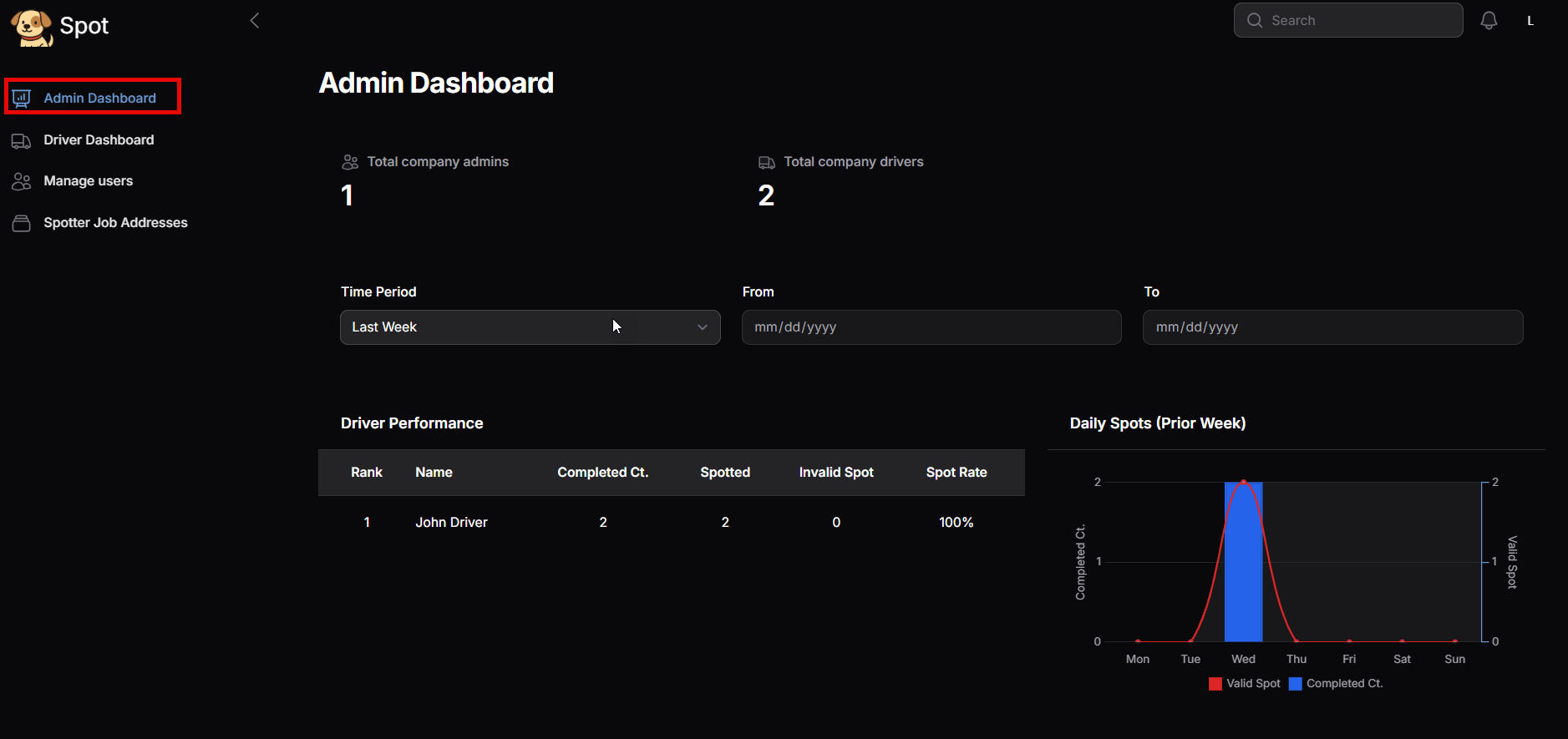
2️⃣ Driver Dashboard Overview
After logging in, you can access the Driver Dashboard.
How to Access:
Click Driver Dashboard from the main navigation menu.
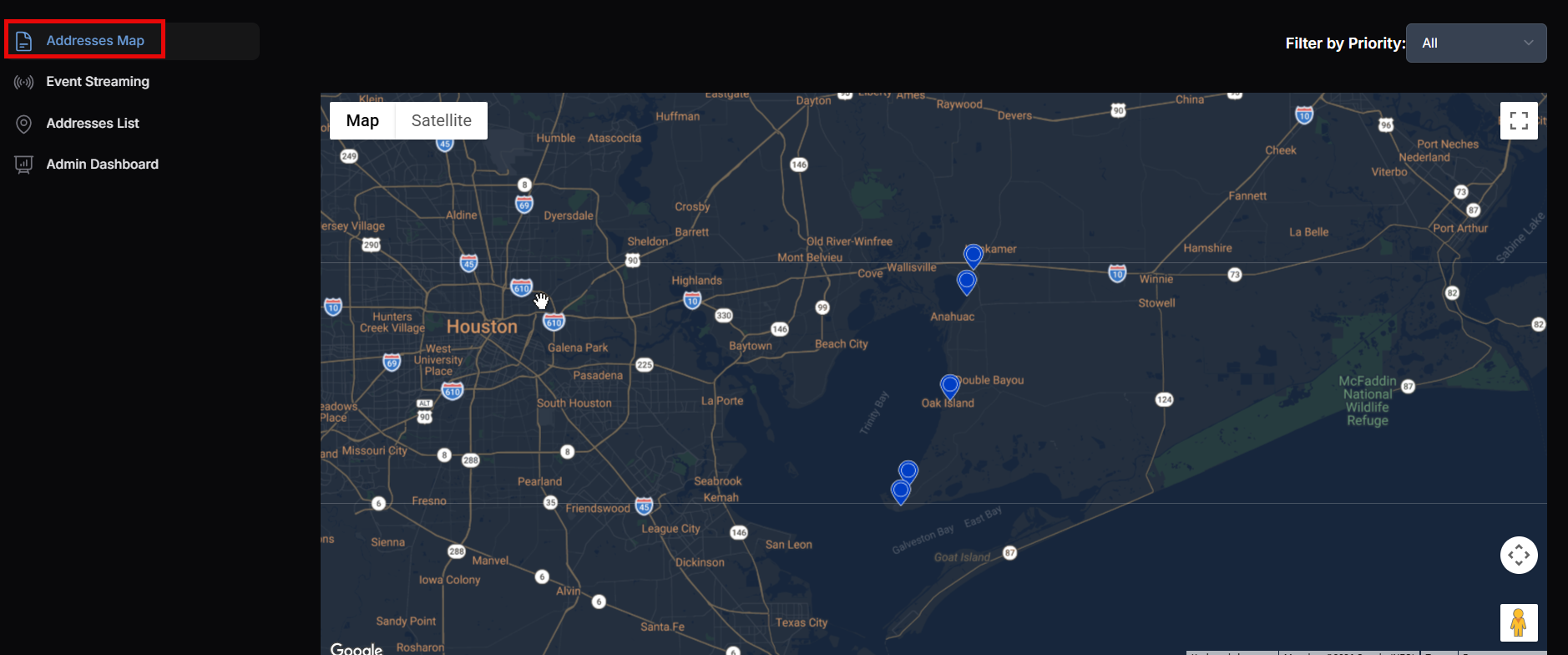
3️⃣ Manage Users
Click Manage Users to access your full user list.
This section allows you to:
View all users
Filter by role
Edit user information
Customize visible columns
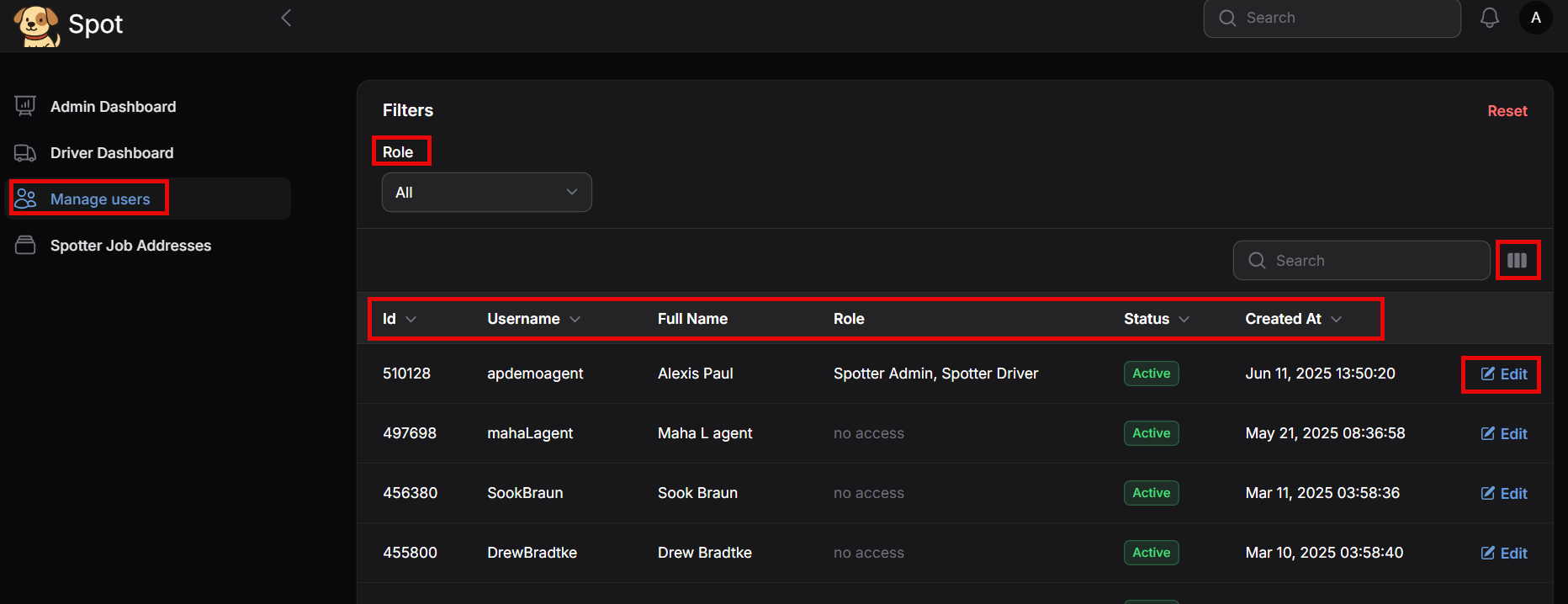
User List Features
Role Filter
Allows filtering by:
Spotter Driver
Spotter Admin
Three-Line Column Selector
The three-line icon allows you to:
Customize which columns appear in your view
User Column Definitions
Column | Description |
|---|---|
ID | Unique number assigned to the user |
Username | User’s login name |
Full Name | User’s legal name |
Role | Spotter Driver or Spotter Admin |
Status | Active, Inactive, or Pending |
Created At | Date the user was added to the system |
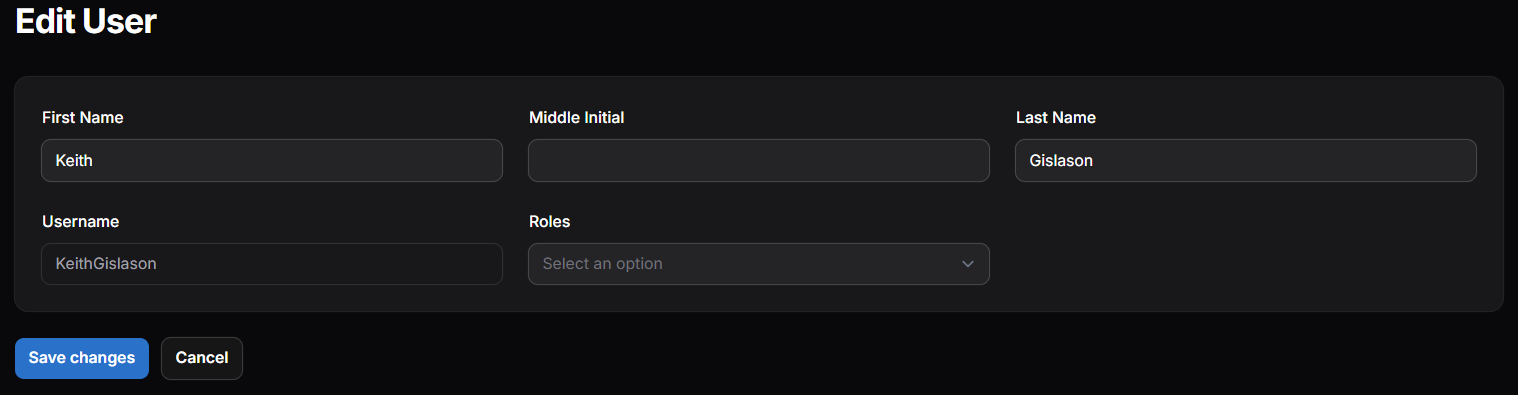
The Edit option allows you to modify user information.
4️⃣ Spotter Job Addresses
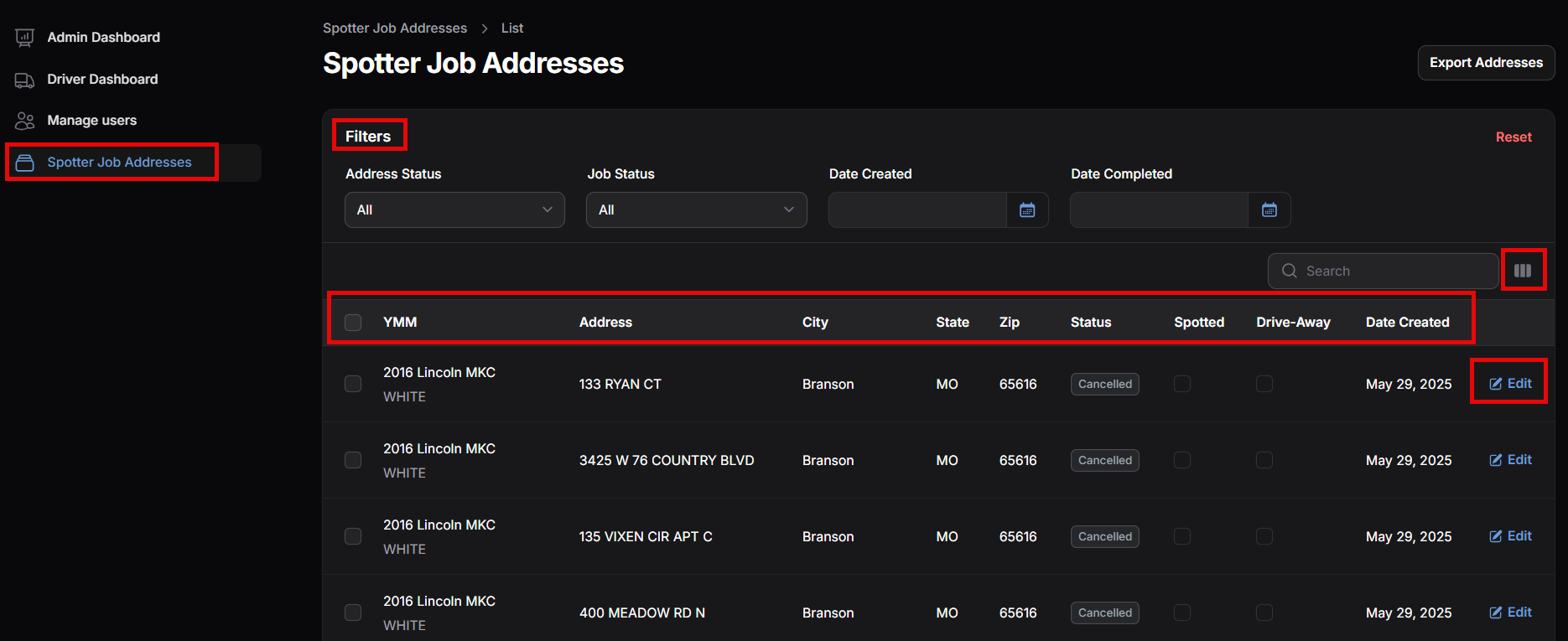
Click the Spotter Job Addresses to view addresses assigned to spotters.
This section is used to:
Monitor job progress
Review spotting results
Edit case details
Filter cases
Filtering Job Addresses
The Filter option allows you to:
Narrow results
View specific case types
Sort by status or other criteria
Customizing Columns
Click the three lines next to Search to select which columns display.
Address Header Definitions
Below is a breakdown of each column in the Spotter Job Addresses section.
Column | Definition |
|---|---|
ID | RecoveryConnect company-specific case number |
VIN | Vehicle Identification Number |
YMM | Year, Make, Model of the vehicle |
Address | Location where the vehicle is to be spotted |
City / State / Zip | Address location details |
Status | Current case status (see below) |
Address Type | Indicates if the location is a business or other type |
Spotted | The vehicle has been located |
Drive Away | Spotter could not access the vehicle |
Plate Process Results | Captured license plate number |
Comments | Notes related to the address |
Date Created | Date entered into Spotter |
Date Completed | Date processing was completed |
Status Definitions
Status | Meaning |
|---|---|
New | The address needs to be accepted |
Accepted | Spotter has accepted the address |
Completed | Address has been processed |
Cancelled | The address has been cancelled for spotting |
Edit Function (Job Addresses)
Selecting Edit allows you to
Update case information
Modify details as necessary