
This article applies to company admins Document Purpose
Outline the functions and features of Self-Service Portfolio Management.
Core Features
- Customers can create and maintain their own mass holds without relying on support team members to manage the process.
- Mass holds can be set by start and end dates, case types, and case addresses.
- Cases will auto-hold per schedule and release from hold on schedule.
Create Mass Hold
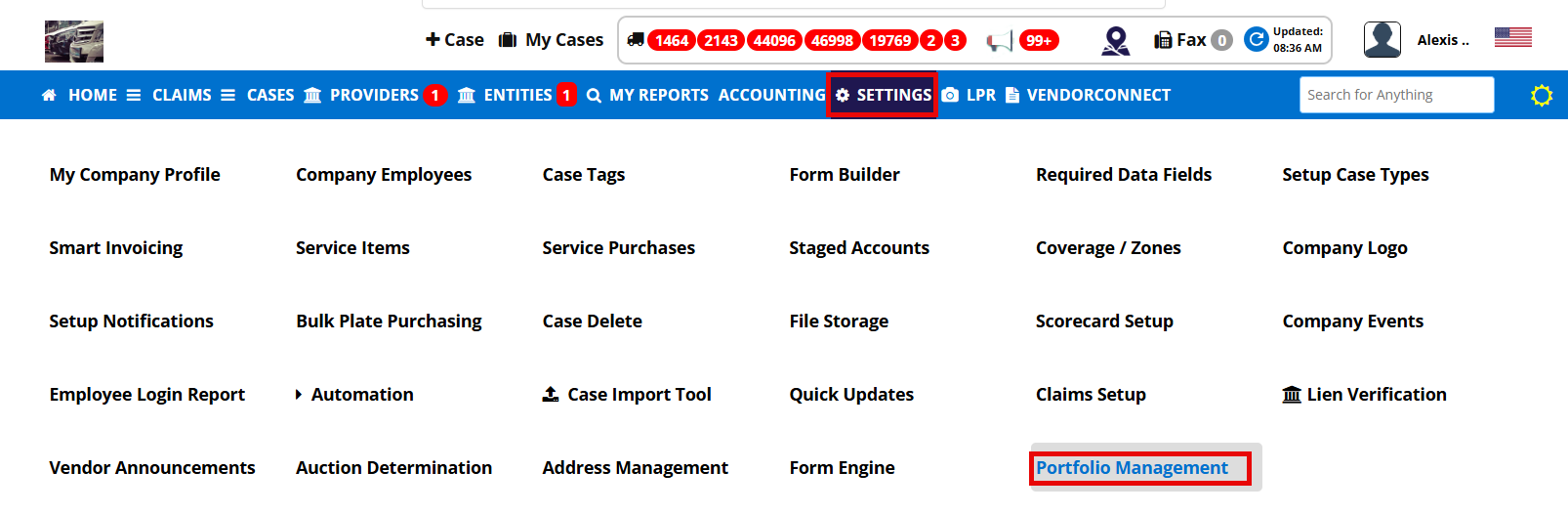
Step 1: Hover on Settings and select Portfolio Management
Step 2: Click on Create Mass Hold

Step 3: Fill out the pop-up
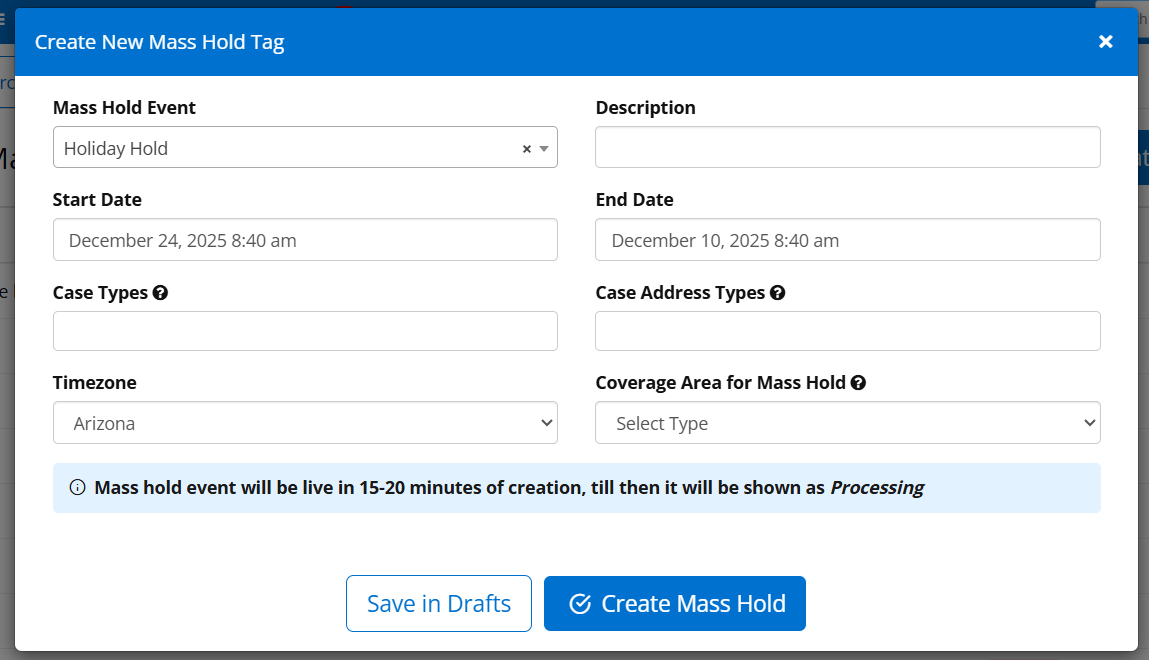
- Mass Hold Name: Create a custom name for your mass hold
- Start Date: When do you want the mass hold to begin
- Case Types: You can select all, or you can choose one by one
- Time Zone: What time zone do you want to use to dictate your start and end times?
- Description: Open field to add whatever you want
- End Date: When do you want the mass hold to stop
- Case Address Types: What type of addresses do you want on hold
- Coverage Area for Mass Hold: Do you want to select specific areas for the hold (Based on coverage areas you have created)
- Select State: You can choose all states or one at a time
- Counties: You will have to upload a file (There is a sample file to use)
- Zip Codes: You will have to upload a file (There is a sample file to use)
Step 4: Save in Drafts or Create Mass Hold
Note: The Mass hold event will be live within 15-20 minutes of creation; until then, it will be shown as pending.
Using Filters
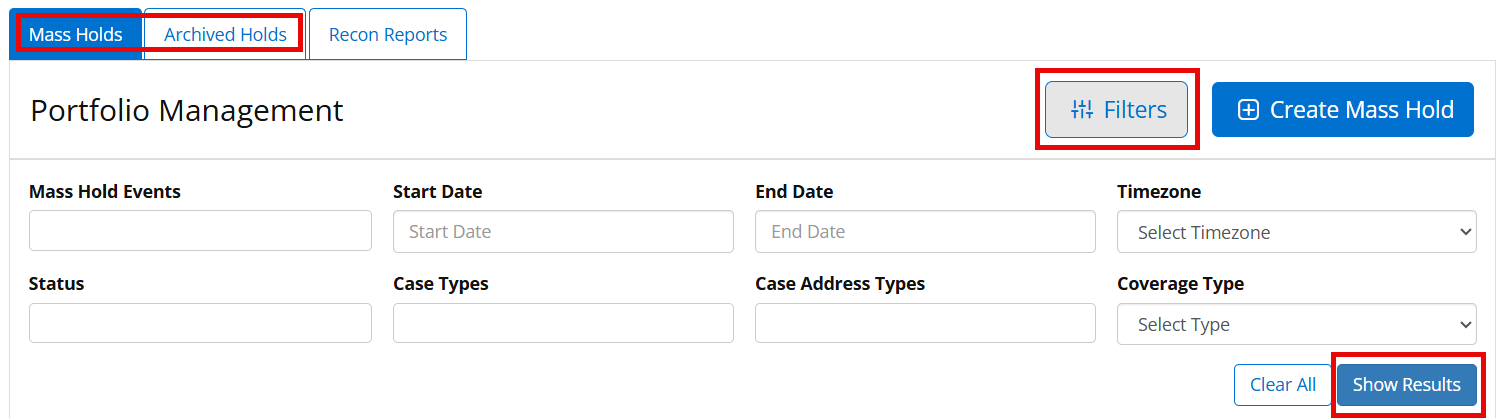
Step 1: From Portfolio Management, select Filters
Step 2: Fill out the areas you want to filter by
Step 3: Click Show Results
Portfolio Management
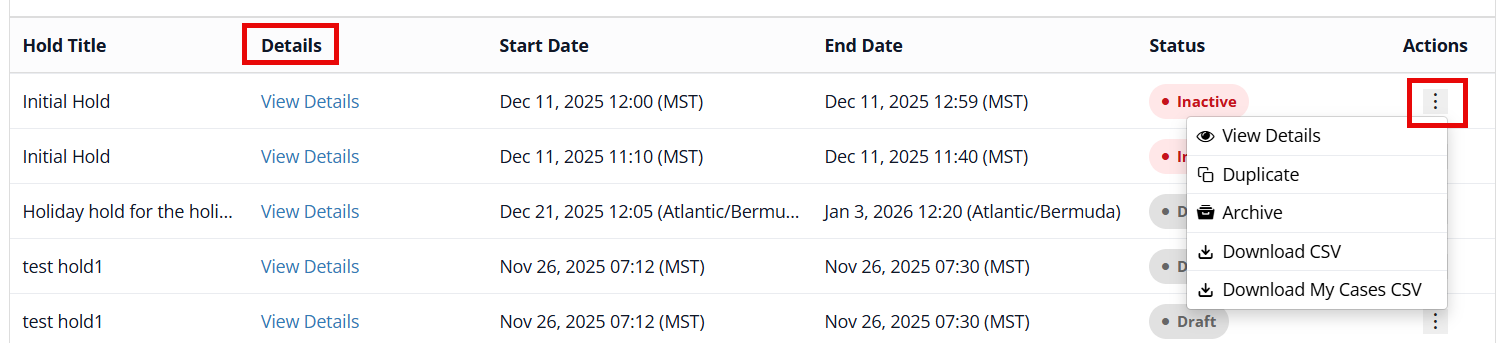
- Hold Title - Name you gave to the mass hold
- Details - When the hold is in an Inactive or Scheduled status, you can view the details but not edit them; when the hold is in a draft status, you can make changes
- Start Date - When the mass hold is scheduled to begin
- End Date - When the mass hold is expected to end
- Status - Shows scheduled, draft, or inactive statuses
- Actions- Three dots open a drop-down of actions
- Scheduled Status
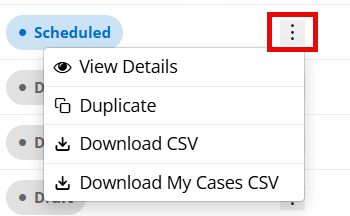
- View Details - Able to see the specifics of the hold
- Duplicate - Will copy the hold details to a new hold
- Download CSV - Will download an Excel with all child cases
- Download My Cases CSV - Will download an Excel of all the parent cases
- Draft Status
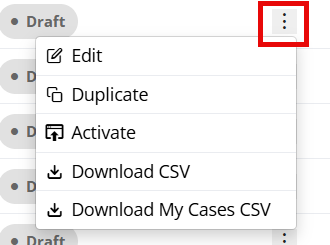
- Edit - Will give the ability to make changes
- Duplicate - Will copy the hold details to a new hold
- Activate - Will make the mass hold go live
- Download CSV - Will download an Excel with all child cases
- Download My Cases CSV - Will download an Excel of all the parent cases
- Inactive Status
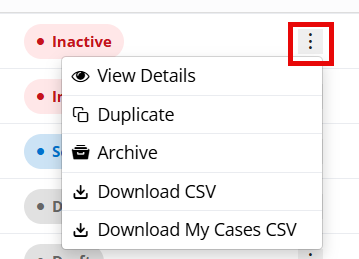
- View Details - Able to see the specifics of the hold
- Duplicate - Will copy the hold details to a new hold
- Archive - Will save the mass hold under the Archive Holds tab
- Download CSV - Will download an Excel with all child cases
- Download My Cases CSV - Will download an Excel of all the parent cases
- Archived Status
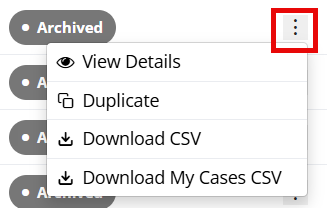
- View Details - Able to see the specifics of the hold
- Duplicate - Will copy the hold details to a new hold
- Download CSV - Will download an Excel with all child cases
- Download My Cases CSV - Will download an Excel of all the parent cases
- Scheduled Status