
This artilce applies to new customers using lien verification Document Purpose
This document outlines how to schedule and set up automation for Lien Loss through the tooling we already have available in RecoveryConnect for all users.
Requirement
Client will be able to set their own schedule for when they want a lien check run and set it with their own parameters. Checks can be set as:
Case Assignment / Reassignment
Case Creation
Every 7 Days
Every 14 Days
Every 30 Days
Checks every 15, 30 minutes, hour, and daily will be disabled.
Client needs to be able to set their own parameters for when to run lien loss, such as “every 30 days on all open and active cases.”
Clients need to be able to run by case status.
Clients need to be able to put in specific dates and times for the lien loss to be run.
It can be determined by time of day, day of the month, and a set schedule.
Proposed Solution
The above requirements can be met by utilizing the scheduler and automation tool in RecoveryConnect.
Here is a specific scenario outlined:
”As a lender, I want to run lien loss against all open and still active, involuntary repossession cases every 30 days, on the first of every month at 5:00am, and to have that report emailed to me directly each month.”
How to Set Up
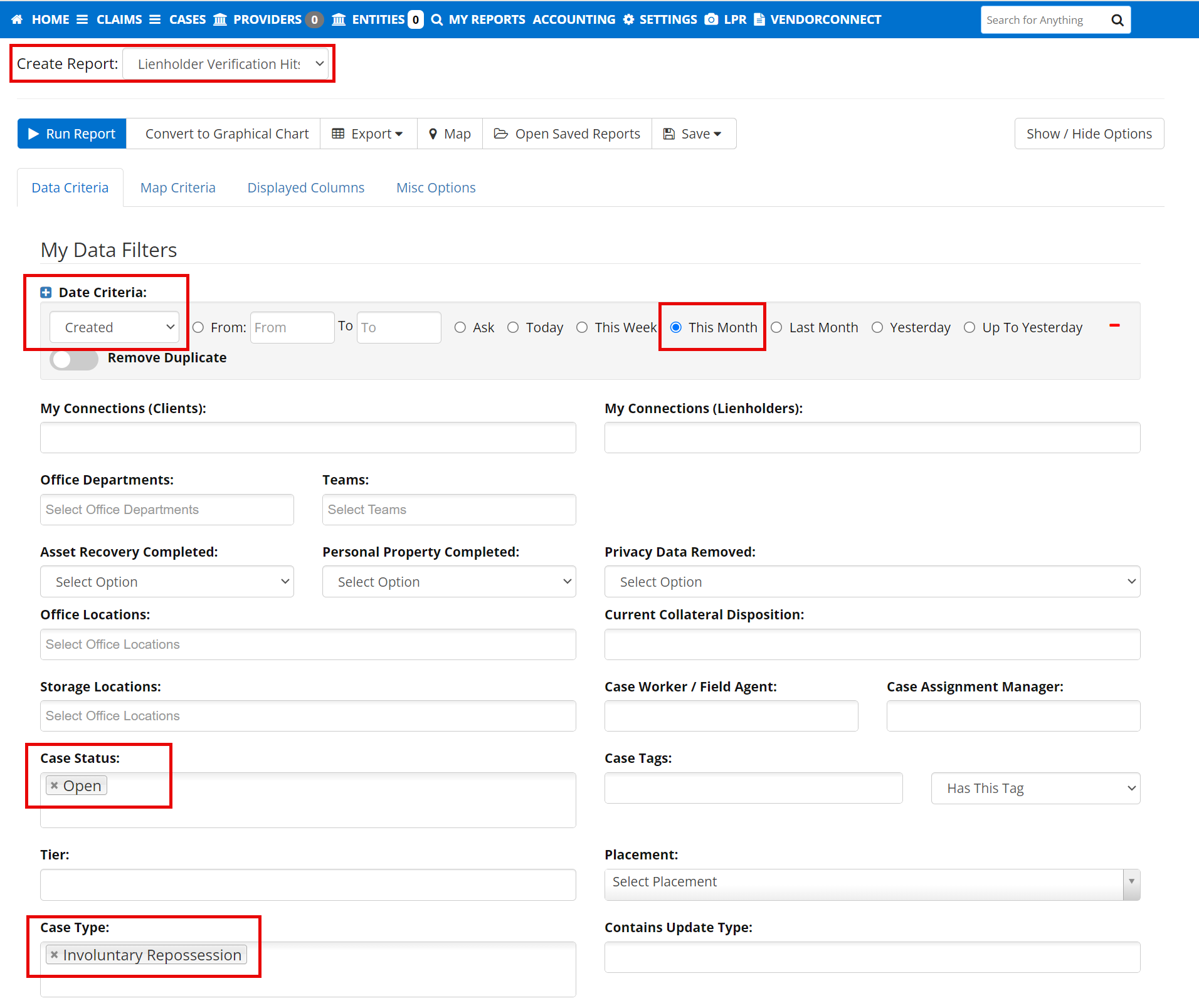
Below is the setup for the requested report.
Data Criteria: Created is selected.
Timeline: This Month is selected.
Case Status: set to Open.
Case Type: set to Involuntary Repo.
Report is saved:
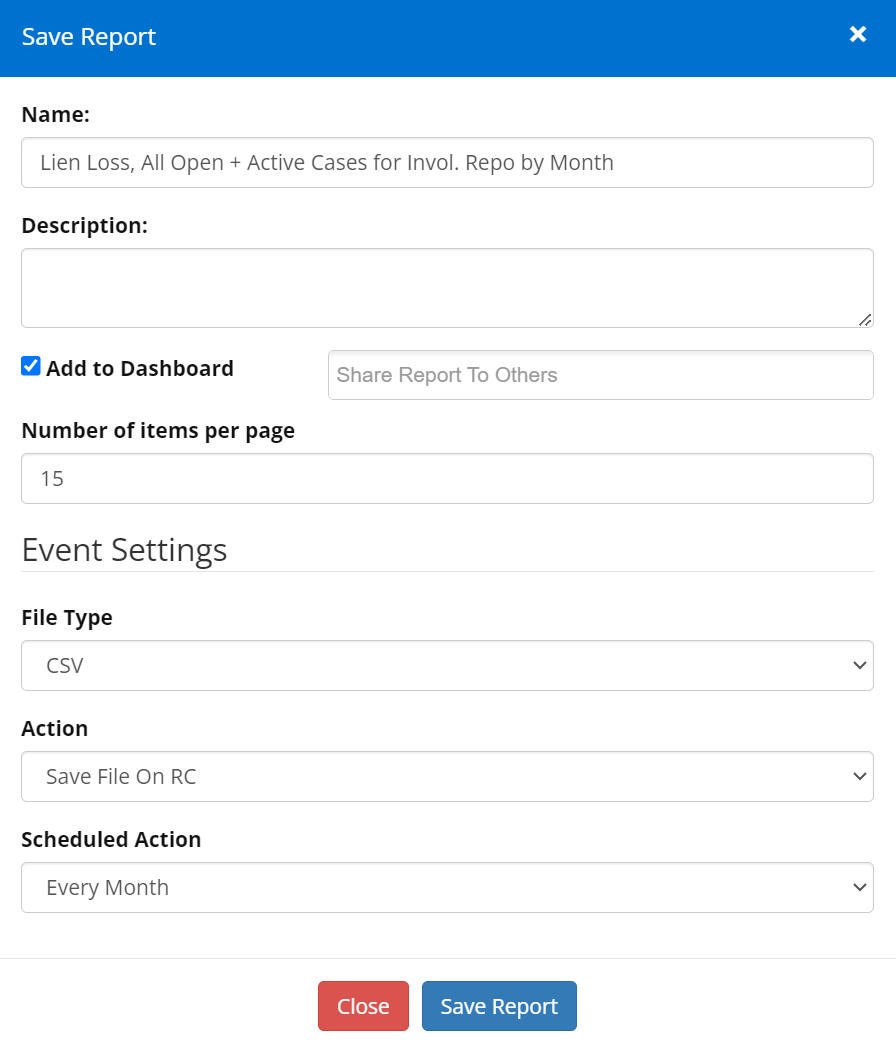
Select Automation under Settings.
Select the plus icon to begin to set up a new automated report.

Set up my report automation rules:
Saved Report is selected.
Action is selected for how to handle the report.
The email to whom the report should be sent is provided.
The time of 5:00 am is selected.
The first of the month is selected for the day.
Each month is selected.
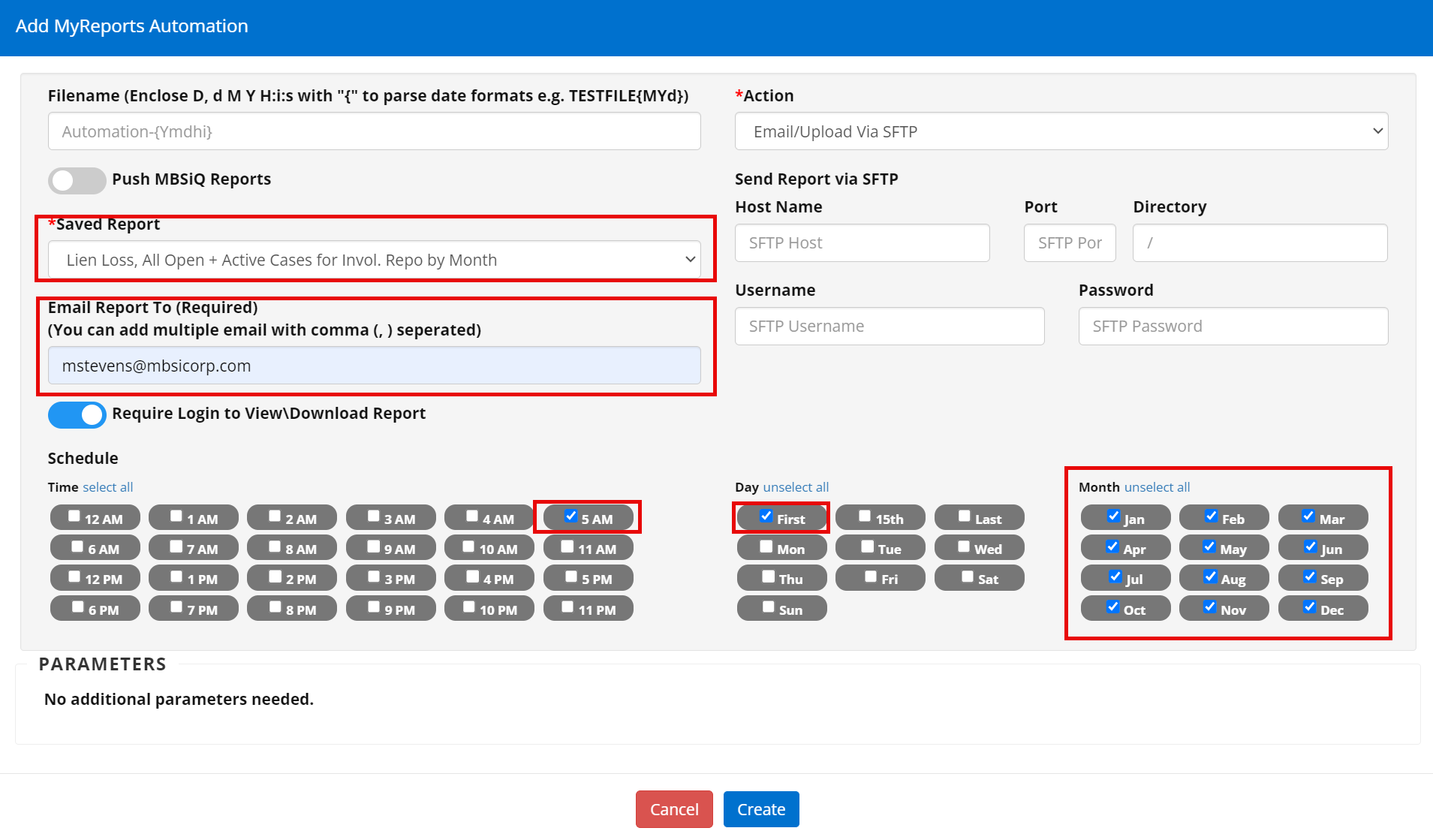
The report has been saved, and the schedule is defined.
