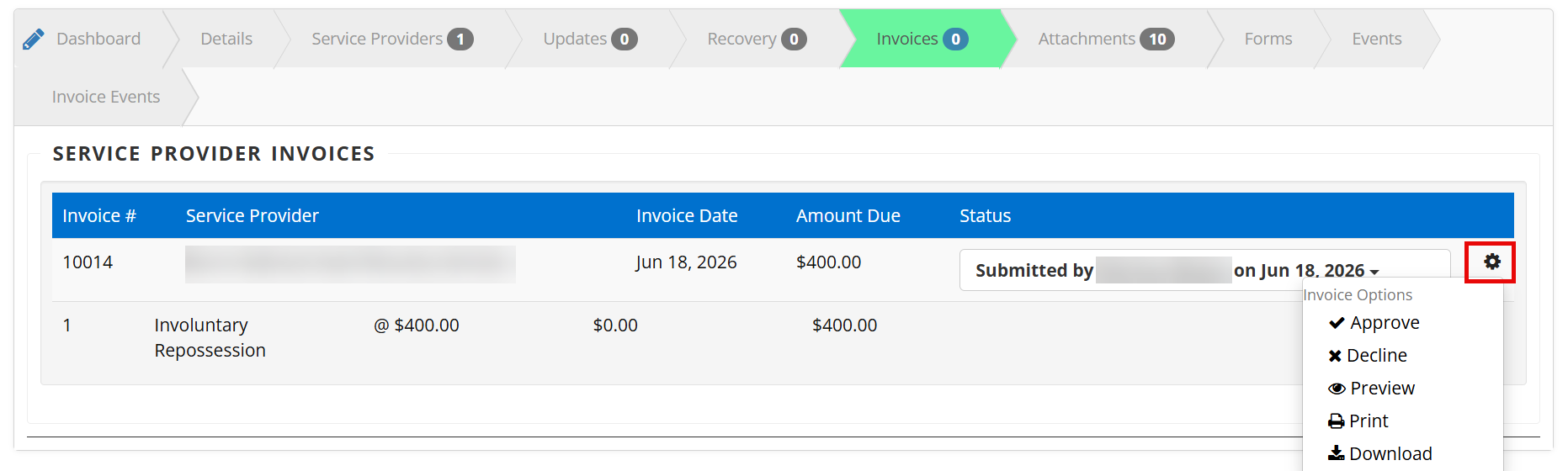
This article applies to agents and forwarders creating invoices When your Leinholder or Client is utilizing Smart Invoicing, your invoices will be auto-created, or you will have to click the Create Repo Invoice button. The steps below will show you how to submit that invoice to the Client or Lienholder once it has been created.
Step 1: Select the case that needs an invoice submitted
Note: As a forwarder, you will need to click the button to create your invoice; agents will have theirs auto-created.
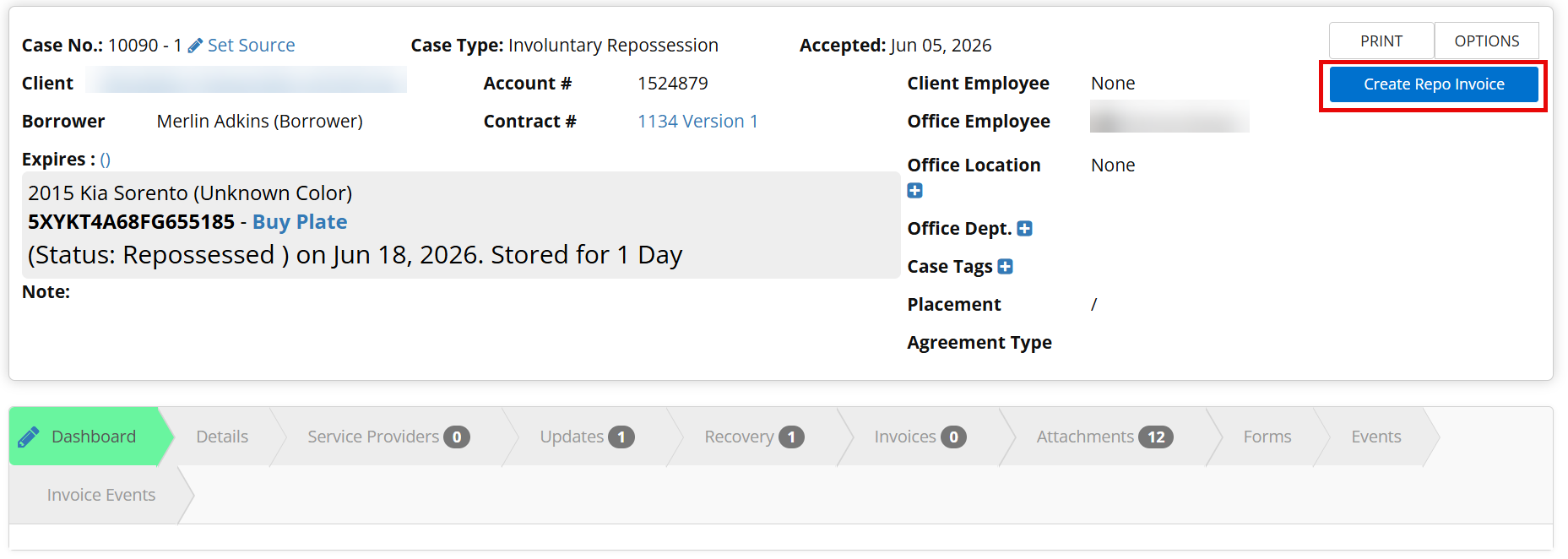
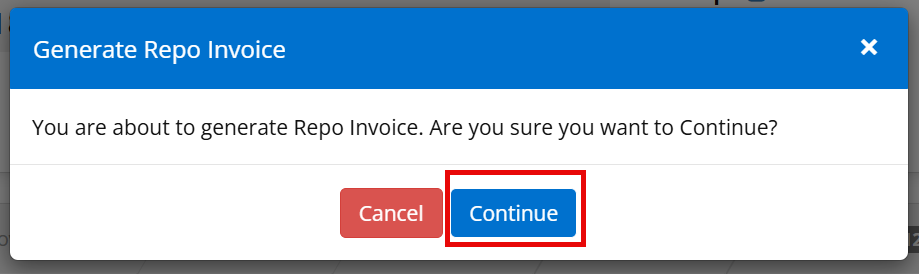
Step 2: Click the Continue button
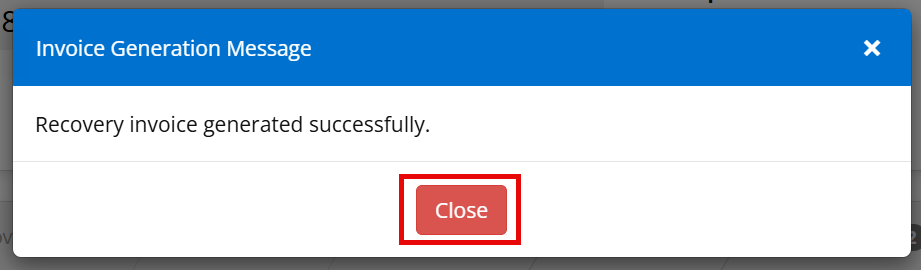
Step 3: Click the Close button
Step 4: Click the Gear to view invoice actions
Step 5: Add Additional Expenses if needed
Step 6: Click the Submit to Client button
Note: This will remove the draft status for the invoice so the Lienholder/Client can take action.
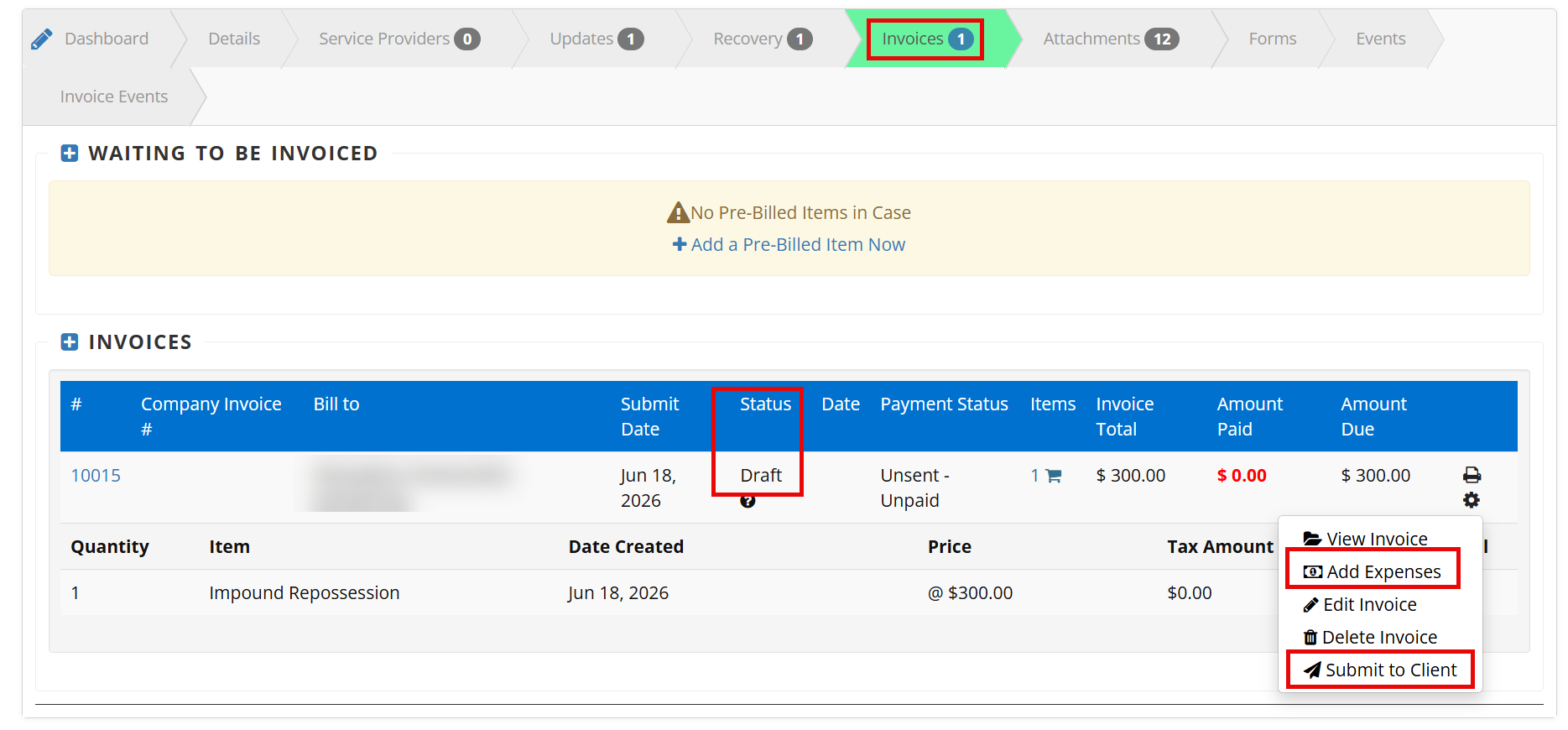
With the invoice in draft status, the Lienholder/Client can not take action.
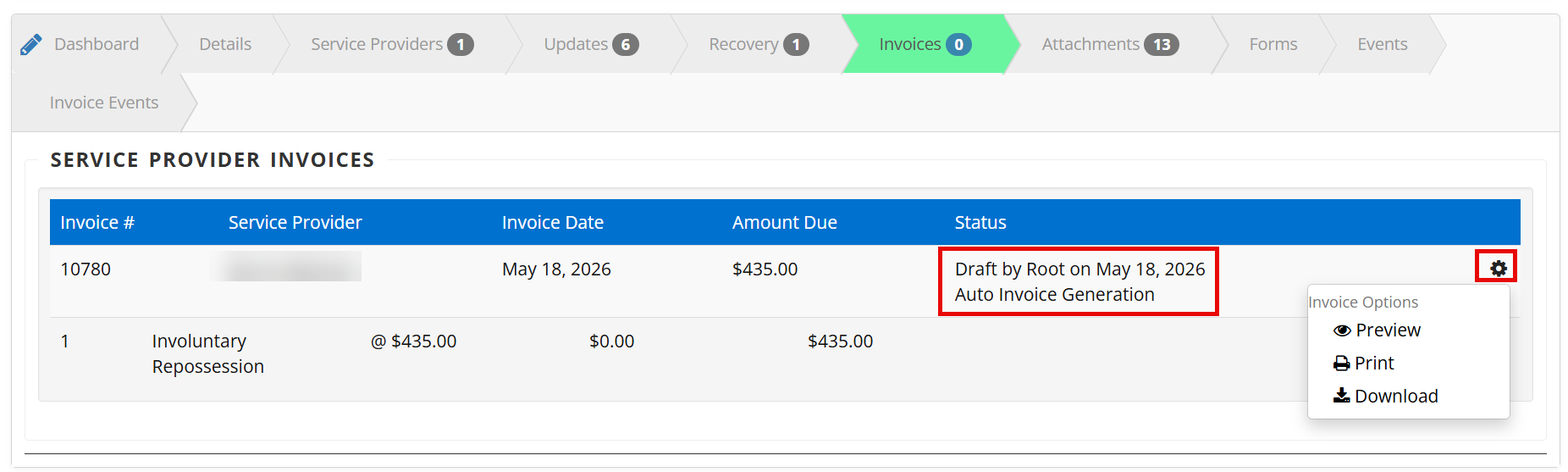
Once the invoice has been submitted, the Lienholder/Client can take action.